Affichage des articles dont le libellé est Javascript Tutorial. Afficher tous les articles

JavaScript tutorial: Adding sound to your pages / PDF


JavaScript tutorial: Adding sound to your pages / PDF 


JavaScript tutorial: Adding sound to your pages / PDF


Sample of the PDF document 


Playing music using an ActiveX control

Note: ActiveX controls are currently supported only by Internet Explorer.

Use your JavaScript Editor to open Music.htm (in the Tutorial folder inside your JavaScript Editor folder) and examine the code.

To run the code click on the Show Internal Viewer button
To play a sound file (in this case Canyon.mid) the code uses the Media Player ActiveX. It ships with any installation of Windows and can be used to play sound, animations and video files.

An example of how to add Media Player to your Web page is given below. Only the most useful parameters are shown, for a complete list have a look at the Music.htm code.

<object id=MPlyr classid=CLSID:22D6F312-B0F6-11D0-94AB-0080C74C7E95
align=left width=0 height=0 style="VISIBILITY: hidden">


Once the Media Player object is defined you can use its ID in your JavaScript functions to invoke the object's methods, such
as MPlyr.Play() or MPlyr.Pause().
In this example the Media Player plays the sound file but remains hidden (style="VISIBILITY: hidden"). By changing
the parameters you can control the size, appearance and other properties of the Player. Most importantly, by changing the
"Filename" parameter you can use it to replay AVI, MPEG, MOV, MP3 and other types of Multimedia files............


JavaScript tutorial: Adding sound to your pages / PDF 


0

Get started with the JavaScript language / PDF


Get started with the JavaScript language / PDF


Get started with the JavaScript language / PDF


Sample of the PDF document 


1.1 Versions and Implementations
JavaScript version 1.0 was implemented in Netscape Navigator 2.0 and Netscape LiveWire 1.0. This specification describes JavaScript version 1.1, which was implemented in Netscape Navigator 3.0. This specification describes the language, and not the specific features of any particular implementation.

Although JavaScript was originally implemented as a scripting language supplement to HTML in Netscape Navigator and LiveWire, this specification does not prescribe any particular application; the language itself is flexible and apt for many applications.


1.2 Grammar Notation
Terminal symbols are shown in fixed width font in the productions of the lexical and syntactic grammars, and throughout this specification whenever thetext is directly referring to such a terminal symbol. These are to appear in a program exactly as written.


Nonterminal symbols are shown in italic fixed width font. The definition of a nonterminal is introduced by the name of the nonterminal followed by a colon. One or more alternative right-hand sides for the nonterminal
then follow on succeeding lines. For example, the syntactic definition: IfThenStatement:

if ( Expression ) Statement states that the nonterminal IfThenStatement represents the token if, followed
by a left parenthesis token, followed by an Expression, followed by a right parenthesis token, followed by a Statement. As another example, the syntactic definition:
ArgumentList:
Argument
ArgumentList , Argument


states that an ArgumentList may represent either a single Argument or an ArgumentList, followed by a comma, followed by an Argument. This definition of ArgumentList is recursive, that is to say, it is defined in terms of itself.

The result is that an ArgumentList may contain any positive number of arguments.

Such recursive definitions of nonterminals are common.
The subscripted suffix opt, which may appear after a terminal or nonterminal, indicates an optional symbol. The alternative containing the optional symbol actually specifies two right-hand sides, one that omits the optional element and one that includes it. So, for example:


ReturnStatement:
return Expressionopt
is an abbreviation for:
ReturnStatement:
return
return Expression
When the words "one of" follow the colon in a grammar definition, they signify
that each of the terminal symbols or tokens on the following line or lines is an
alternative definition. For example:
OctalDigit: one of
0 1 2 3 4 5 6 7
which is a convenient abbreviation for:
ZeroToThree:
0
1


The right-hand side of a lexical production may indicate that certain expansions are not permitted by using the phrase "but not" and then naming the excluded expansions, as in the productions for Identifier:.........


Download Get started with the JavaScript language / PDF


Get started with the JavaScript language / PDF


0

JavaScript Basics / PDF


JavaScript Basics / PDF


JavaScript Basics / PDF


Sample of the PDF document 


• At this point, you should have reached a certain comfort level with typing and running JavaScript code
— assuming, of course, that someone has already written it for you
• This handout aims to summarize some basic building blocks that will get you on the road to writing some of
your own JavaScript programs
• If you’re interested more details, either consult me, the recommended textbook, or the web — whatever you feel will work best for you :)


The Big Picture
• JavaScript (and many other programming languages) have the following basic building blocks (there are more, of course — but this is what we have for now):

Expressions!!!!!!!!!!Variables!!!!!!!!!!Statements

• Of these building blocks, the statement is the construct that plays the closest role to a plain English instruction — a JavaScript program is essentially a sequence of statements, each of which may involve one or more expressions or variables to get its work done


Expressions
• Expressions are the fundamental “things” or “nouns” in JavaScript — they are pieces of code that are evaluated to determine the “thing” that this code represents
• Examples of such expressions (and their corresponding “things” or computed values) include:
• Expressions consist of values and operators
• Every value in JavaScript is either a Boolean (true or false), a number, a string (i.e., a piece of text, including letters, numbers, punctuation, or other symbols), a special value called undefined, a special value called null, or an object
• Of these, Booleans, numbers, and strings are easiest values to understand, because we probably already use them a lot in daily life
• Operators represent actions that combine or manipulate values to produce a new value — for example,
multiplication operator (represented by * in JavaScript) combines two numbers and to compute their product

Strings

• Values that we typically think of as text, words, or phrases fall under the technical term string — symbols
(or characters) that are strung together
• The notion of a “symbol” here is actually quite broad: it adheres to a standard called Unicode and encompasses way more than the alphabet, numbers, and punctuation
• String values are written within double quotes (e.g., "string") or single quotes (e.g., 'string'), all on one line
• Special symbols are preceded by a backslash (\) — ask me if you’re curious about these...........


Download JavaScript Basics / PDF


JavaScript Basics / PDF


0

Tips for JavaScript / PDF


Tips for JavaScript / PDF

Tips for JavaScript / PDF


Sample of the PDF document 


Objectives

• Learn how to make JavaScript code execute faster.
• Explore techniques for caching JavaScript code.
• Understand the cost of using objects and methods.


Creating Prototypes
The prototype property lets you define and add custom methods and properties to objects. Before using the prototype property to assign a method, create a function that defines what actions will be performed. Use the JavaScript keyword this inside your function to refer to the current instance of the object.

To have the method return a value to the user, use the JavaScript keyword return.

Once you have created your function, you can assign it as a method. Thesyntax for assigning a function to a prototype is as follows:

.prototype. = name>

NOTE :Never list the arguments of a function when assigning the function as a method. If you don’t, a syntax error will result and the function will never get called.

String Prototypes
Use the string prototype to add properties and methods to the String object. For
example you may add a compare method that takes a string as an argument and
returns true if they are equal or false if they are not. Here is an example of
creating and using a string prototype:


Number Prototypes
Use the number prototype to add properties and methods to the Number object.

For example you may add a method that converts a string into a number. Here is an example of creating and using a number prototype:


Date Prototypes
Use the date prototype to add properties and methods to the Date object. For example you may add a method that determines the number of days between two dates. Here is an example of creating and using a date prototype:......


Download Tips for JavaScript / PDF


Tips for JavaScript / PDF


0

JavaScript Functions / PDF


JavaScript Functions / PDF


Sample of the PDF document 


A function is a major programming construct that you have not yet seen — but, I’d argue, once you’ve seen it, you might wonder how you ever lived without it :)

• The reality is that you’ve already been using functions
— alert, prompt, parseFloat, parseInt, among others, are actually functions
• What you haven’t done yet is to make your own functions — until now


What is a Function?
• A function is an object that carries out a specific computation (i.e., it represents an algorithm)
• Functions are written (“defined”) once, but can be used or run (“called”) over and over again
• Functions allow you to express an algorithm once, then it as many times as you like without having to copy
its instructions all over the place
• Since they represent algorithms, functions have explicit constructs for working with their input and output


Anatomy of a Function
• As with any other JavaScript construct, a function must be defined using a particular format
• This format is likely more complicated than anything you have seen before; your reward for mastering it is
the ability to define sequences of code that you can use over and over, for the life of a program
Experienced programmers build “libraries” of useful functions, and frequently share them with (or sell them to) others
• To illustrate this format, we have chosen to “annotate” a sample function and an instance of its use.....


Download JavaScript Functions / PDF


JavaScript Functions / PDF


0

JavaScript digital clock example / PDF


 JavaScript digital clock example / PDF


JavaScript digital clock example / PDF


Sample of the PDF document 


This is the Javascript code that corresponds with a video tutorial we recently made about programming a custom digital clock from scratch in Javascript. The video shows a very in depth explanation of the programming logic if you would like a rundown. But for those of you ready to just grab the script it is available for copying below......


Download JavaScript digital clock example / PDF


 JavaScript digital clock example / PDF


0

Export HTML Table to Excel with JavaScript / PDF

Export HTML Table to Excel with JavaScript / PDF


Sample of the PDF document 


Export HTML Table to Excel with JavaScript / PDF


Download Export HTML Table to Excel with JavaScript / PDF


Export HTML Table to Excel with JavaScript / PDF


0

JavaScript slideshow builder / PDF


JavaScript slideshow builder / PDF


JavaScript slideshow builder / PDF


Sample of the PDF document 


About JavaScript Slideshow Builder:

JavaScript Slideshow Builder is a simple, lightning-fast and powerful desktop utility program that lets you create image slideshow DHTML /JavaScript script with sliding info on web pages, JavaScript Slideshow Builder provide 5 different slideshow effects (fade, scroll, Gallery, or slide effect etc.).


The script can be customized highly and easily through the JavaScript Slideshow Builder Software. You can specify image, size, color, link and more to script. It is unnecessary to write any code manually. JavaScript Slideshow Builder will generate all necessary codes automatically.

You will need to upload some files to web server to get the script to work and all these files will be saved along with the project file so that you can easily find and publish them to the Internet or deploy to Intranet. Help documentation is included but you may not need it with self-explanation interface.


With this easy-to-use script authoring tool, you can make a professional script just in minutes!

You can use JavaScript Slideshow Builder Wizard to build:

- Simple JavaScript Slideshow Builder with fade, scroll, or slide effect.
- JavaScript image gallery with thumbnails and control buttons.
- Photo gallery.
- Image based content slider.
- Banner rotator.

JavaScript Slideshow Builder Features:

• 5 different cross browser slideshow effects.
• Easy-to-configure.
• You can see the slideshow with Internet Explorer, Netscape, Firefox, Mozilla,
Opera, Chrome, and Safari.
• The slideshow automatically advances the slides. You can set the duration.
• You can create more than one slideshow on the same page.
• Preview the script by simply one-button-click.
• Users can trigger the link for a slide by clicking the image.


Using JavaScript Slideshow Builder

JavaScript Slideshow Builder can be started either by launching the
application via a desktop shortcut, or directly from within
Windows/Windows Explorer.
When you start the program, you will be presented with the primary screen from
which all actions are taken.......


Download JavaScript slideshow builder / PDF


JavaScript slideshow builder / PDF


0

JavaScript news ticker / PDF


 JavaScript news ticker / PDF 


Sample of the PDF document 


About JavaScript News Ticker

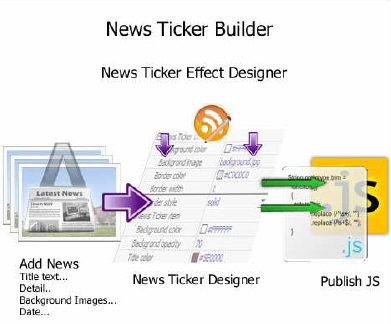
JavaScript News Ticker is a simple, lightning-fast and powerful desktop utility program
that lets you creating DHTML news scrollers for your Web sites. You can create
moving texts and images in a few minutes!


 JavaScript news ticker / PDF


JavaScript News Ticker is a professional highly configurable javascript news ticker and
content slider solution. You can use DHTML News Ticker to build news ticker, content
slider, content rotator, banner rotator, and image rotator.
You can use JavaScript News Ticker for your favourite quotes, recent blog posts, and
featured pictures. Every design element is customizable!


JavaScript News Ticker Features:

• Provides an easy method for delivering news and other information.
• Dhtml scroller ( JavaScript scroller ) or transition effects
• Allows some HTML tags for news items.
• Runs multiple html news ticker on one web page .
• Adjustable effect speed and pause delay between items.
• Easy building, testing and installation.
• Supports images.
• Full customizable font characteristics.
• A visual editor guides you through the set-up process of the html scrolling text.
• Easy-to-configure.
• Customizable pagination links.
• Requires no JavaScript knowledge to create html ticker, JavaScript marquee,
and text fader.


Using JavaScript News Ticker

JavaScript News Ticker can be started either by launching the application via
a desktop shortcut, or directly from within Windows/Windows Explorer.
When you start the program, you will be presented with the primary screen from
which all actions are taken.


Adding News items

Clicking the Add News icon to add news item, you can define selected
news item, include:
1. Title: news caption.
2. Title Image: define title image for title, default size 16X16
3. Main text: define detail for the news, support multi text field.
4. Text Image: define the image for detail text.
5. Date: define the date for the news
6. URL: define the action to web URL......


Download  JavaScript news ticker / PDF


 JavaScript news ticker / PDF 


0

JavaScript Slideshow / PDF


JavaScript Slideshow  / PDF


JavaScript Slideshow / PDF


Table of Contents


Method: constructor
Method: load
Method: destroy
Method: first
Method: prev
Method: pause
Method: next
Method: last
Method: go


----------------------

Sample of the PDF document 


Method: constructor

Creates an instance of the Slideshow class. Applied to an existing element(s) in the HTML. Can parse in existing images, alt attributes, thumbnails, etc. or create as necessary.

Syntax:

vvaarr myShow = nneeww SSlliiddeesshhooww(element, data, options);

Arguments:
1. element - (element) The wrapper element.
2. data - (array or object) The images and optional thumbnails, captions and links for the show.
3. options - (object) The options below.


Options:
accesskeys - (object) Object of custom key/label combinations for accessibility accesskeys. The "key" can be any combination of
alphanumeric keys and/or modifiers (one of shift, control or alt) separated by commas. The "label" can be any localized text that will
appear as a tooltip.
captions1 - (boolean or Fx options object: default false) Whether to show captions.
center2 - (boolean: default true) Whether the show should attempt to center images.
classes3 - (array) An array of CSS class names to use with styling the show.
controller1 - (boolean or Fx options object: default false) Whether to show controller.
delay - (integer: default 2000) The delay between slide changes in milliseconds (1000 = 1 second).
duration - (integer: default 750) The duration of the effect in milliseconds (1000 = 1 second).
fast - (boolean, integer or one of the named constants) Originally related to "fast mode" a slideshow mode where transitions were
skipped. The named constants are WhenPaused, WhenPlaying and OnStart and can be combined using the bitwise OR operator | (a
single bar). For example, fast = WhenPaused tells Slideshow to skip transitions when the user navigates a paused show. Or, fast =
WhenPaused | WhenPlaying tells slideshow to always skip transitions when the user navigates the show.
height - (boolean or integer: default false) Optional height value for the show as a whole integer, if a height value is not given the height
of the default image will be used.
href - (string: default empty) A single link for the show, inherited from the HTML href of the default image.
hu - (string) Path to the image directory, relative or absolute, default is the root directory of the website, use an empty string for the
same directory as the webpage.
linked - (boolean: default false) Whether the class should automatically link each slide to the fullsize image, useful when mashing
Slideshow with Slimbox, Lightbox, etc.
loader1 - (boolean or Fx options object: default object) Show the loader graphic for images being loaded.
loop - (boolean: default true) Should the show loop.
match - (regexp) A regular expression the class uses to parse the URL, will overwrite "slide" below, default looks for ?slide=n where
"n" would be the slide to start from.
onStart, onComplete, onEnd - (function) Events that are fired on the start or completion of a slide change and at the end of a nonlooping
show.
overlap - (boolean: default true) Whether images overlap in the basic show, or if the first image transitions out before the second
transitions in.
paused - (boolean: default false) Whether the show should start paused.
random - (boolean: default false) Random show, combined with thumbnails equals very cool!
replace - (array) An array, consisting of a regular expression pattern and a string replacement, for building thumbnail filenames based
on the name of the original image, default appends a "t" to the image filename before the extension.
resize - (boolean or string: default "fill") Whether the show should attempt to resize images, based on the shortest side (default) or
longest side ("fit") or resize without preserving proportions ("stretch"). Set to false to disable image resizing.
slide - (integer: default 0) Slide from which to start the show.
thumbnails1 - (boolean or Fx options object: default false) Whether to show thumbnails.
titles - (boolean) Whether to use captions for image and thumbnail title attributes.
transition - (function: default Sine) Transition to use with base and push type shows (requires Mootools with Fx.Transitions).
width - (boolean or integer: default...........


Download JavaScript Slideshow / PDF


JavaScript Slideshow  / PDF


0

Tags